
Best AI Chrome Extensions are becoming essential for writers, researchers, students, freelancers, and content creators who want to save time and work faster online.
I was working in my office and my Chrome browser looked like a complete mess.
I had 40+ tabs open, random productivity extensions I never touched, three AI writing tools fighting each other inside Gmail, and a laptop fan sounding like it was preparing for takeoff.
At one point, I installed almost every “best AI Chrome extension” video recommendation I could find. Big mistake.
You can also explore some hidden AI websites that most people still don’t know about.
Some slowed down my browser. Some were useless after the first week. A few looked impressive in YouTube demos but became annoying in real work.
After testing a ridiculous number of AI extensions during client work, content writing, research, emails, YouTube planning, and everyday browsing, I finally narrowed things down to the tools that genuinely save time.
These are the AI Chrome extensions that stayed installed on my browser for months not just for screenshots or hype.
Why AI Chrome Extensions Became So Useful
The biggest reason is simple: convenience.
Opening separate AI websites again and again gets tiring. Especially when you’re already researching something, replying to emails, watching YouTube tutorials, or writing content.
The Best AI Chrome Extensions remove friction from everyday tasks like writing emails, summarizing pages, researching topics, and managing online work.
Good AI extensions remove extra steps.
For example:
- Summarizing a long article without opening another tab
- Writing a quick professional reply inside Gmail
- Turning rough notes into clean text
- Explaining difficult paragraphs instantly
- Creating meeting summaries automatically
- Fixing grammar while typing
The best ones feel invisible. They quietly help without interrupting your workflow.
The bad ones constantly pop up everywhere and try too hard to be “smart.”
I learned that difference very quickly.
1. ChatGPT for Chrome
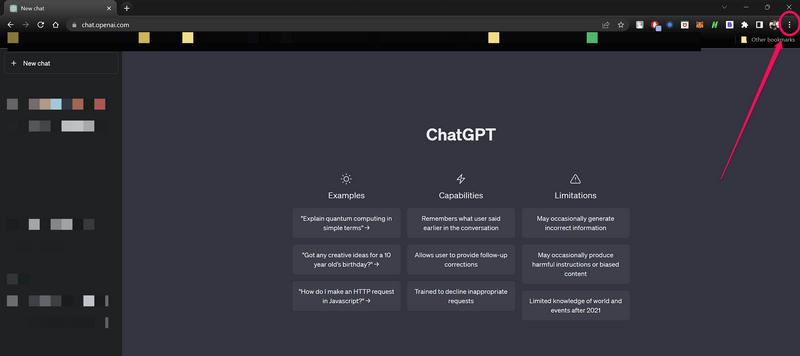


This became my most used AI extension surprisingly fast.
I originally thought it would just be another chatbot shortcut. But after using it during actual work, it replaced multiple smaller tools.
What I use it for most:
- Summarizing articles
- Rewriting awkward sentences
- Brainstorming titles
- Explaining technical stuff quickly
- Turning messy notes into readable paragraphs
One feature I didn’t expect to use so much was webpage context support. Instead of copying huge chunks of text manually, I could ask questions directly while reading.
That alone saved a lot of time during research heavy projects.
A mistake I made early:
I relied too much on AI generated text without editing it. The result sounded robotic.
Now I treat AI as a helper, not a replacement. I still rewrite things in my own tone.
That balance works much better.
Official website: OpenAI
2. Grammarly


I used to think Grammarly was only for fixing grammar mistakes.
Then I started using it while talking to clients.
Huge difference.
It catches weird sentence flow, awkward wording, and accidental rude sounding replies that happen when you’re typing fast.
The AI rewrite suggestions are surprisingly useful for:
- Emails
- Proposals
- Blog intros
- Short client replies
One thing I like is that it doesn’t completely rewrite your personality unless you let it.
Some AI writing tools make everything sound like corporate LinkedIn posts. Grammarly usually keeps things natural.
A real life example:
I once sent a Fiverr client a rushed reply that sounded unintentionally aggressive. Grammarly flagged the tone before I hit send.
That saved me from an awkward situation.
One warning though:
Don’t accept every suggestion blindly. Sometimes simple human wording sounds better than “perfect” grammar.
Among all the Best AI Chrome Extensions I tested, Grammarly stayed useful long after the initial hype disappeared.
Official website: Grammarly
3. Perplexity


This one became my research shortcut.
Instead of opening 15 tabs trying to compare information manually, I started using Perplexity to get direct summarized answers with sources.
It’s especially useful for:
- Researching blog topics
- Comparing products
- Quick fact checking
- Understanding complex topics fast
I tested it while researching laptop comparisons and AI tool reviews.
For research heavy workflows, Best AI Chrome Extensions like Perplexity genuinely reduce time spent opening multiple tabs.
Normally, I’d waste an hour jumping between websites. Perplexity cut that time down massively.
The source links are what make it useful.
Without sources, AI answers can become dangerous because you don’t know where the information came from.
Still, I always double check important details myself. Especially specs, pricing, or anything technical.
Official website: Perplexity AI
4. Compose AI
This extension surprised me.
I installed it expecting generic autocomplete, but it actually became helpful during repetitive typing.
If you write lots of:
- Emails
- Support replies
- Outreach messages
- LinkedIn responses
…it saves serious time.
The autocomplete feels smarter than Chrome’s default suggestions.
For example, after typing a few words like:
“Thanks for reaching out…”
…it can predict entire useful responses.
At first, I ignored the suggestions because they felt strange. After a few days, I naturally adapted to them.
The speed difference becomes noticeable over time.
One thing I learned:
This tool works best when you already know what you want to say. It’s not great for deep thinking or creative writing.
Official website: Compose AI
5. tl;dv


I honestly underestimated this extension.
Then I joined a long meeting where everyone kept saying:
“Can you repeat that?”
After using tl;dv, I stopped manually taking messy notes during calls.
It records meetings, creates summaries, and highlights important moments automatically.
This is incredibly useful for:
- Client calls
- Team meetings
- Online classes
- Interview sessions
The best part is reviewing key moments later instead of rewatching entire recordings.
One mistake people make:
They trust AI summaries too much without checking details.
AI summaries are good, but sometimes they miss context or misunderstand decisions made during discussions.
Still, for productivity, this tool is genuinely impressive.
Official website: tl;dv
6. Monica


Monica feels like a Swiss Army knife for AI tasks.
It combines multiple AI features into one extension:
- Chat assistant
- Writing helper
- Translation
- Summarization
- Content generation
I tested it heavily while multitasking between YouTube scripts, emails, and blog research.
The sidebar integration is very convenient.
Instead of switching tabs constantly, the AI stays accessible while browsing.
However, this extension taught me something important:
Too many features can become distracting.
Some Best AI Chrome Extensions try to do too much, but Monica works surprisingly well once unnecessary features are disabled.
When every button promises “AI magic,” productivity can actually drop.
I eventually disabled some features and only kept the tools I genuinely used.
That made the experience much cleaner.
Official website: Monica AI
AI Chrome Extensions That I Removed Quickly
Not every popular extension deserves space in your browser.
Here are the biggest red flags I noticed:
1. Too Many Popups
Some extensions inject buttons everywhere:
- Google Search
- Gmail
- YouTube
- Docs
After a while, your browser feels cluttered.
If an extension constantly interrupts you, it’s probably not helping productivity.
2. Fake “Free” Plans
A lot of AI tools advertise themselves as free.
Then you install them and discover:
- Tiny daily limits
- Important features locked
- Credits running out instantly
I now check pricing before getting attached to a tool.
3. Slow Browser Performance
This matters more than people realize.
One poorly optimized AI extension can:
- Drain RAM
- Slow page loading
- Cause browser lag
- Kill laptop battery life
I once installed five AI assistants together and Chrome became painfully slow.
Now I keep only the extensions I actively use every week.
My Personal Setup Right Now
After testing dozens of tools, my current setup is surprisingly simple:
- ChatGPT for brainstorming and summaries
- Grammarly for writing
- Perplexity for research
- tl;dv for meetings
That’s it.
I removed everything else.
The biggest productivity improvement didn’t come from installing more AI tools.
It came from keeping fewer, better ones.
Tips Before Installing Any AI Extension
Here’s what I wish someone told me earlier.
Check Permissions Carefully
Some extensions request access to:
- All websites
- Emails
- Browser history
- Tabs
That doesn’t automatically mean they’re dangerous, but you should understand what you’re allowing.
Don’t Depend Fully on AI
AI can:
- Hallucinate facts
- Misunderstand tone
- Oversimplify information
Always review important content yourself.
Especially:
- Client messages
- Contracts
- Technical information
- Published articles
Keep Your Workflow Simple
The internet makes it feel like you need 20 AI tools to stay productive.
You probably don’t.
A small setup you consistently use is far better than a giant collection of extensions you forget about after two days.
Final Thoughts
After months of testing, I realized the Best AI Chrome Extensions are the ones that quietly improve your workflow instead of constantly interrupting it.
Most AI Chrome extensions look impressive during demos.
Very few remain useful after the excitement wears off.
The tools above actually helped me save time during real work writing content, replying to clients, researching topics, managing meetings, and organizing ideas without constantly switching tabs.
If you’re starting out, don’t install everything at once.
Pick one or two extensions based on what you genuinely do most:
- Writing
- Research
- Meetings
- Productivity
- Summaries
Use them for a week properly.
You’ll quickly notice which tools genuinely improve your workflow and which ones are just flashy distractions.
Pingback: Top AI Tools for Students to Study Faster in 2026